Pages

SEARCH ANYTHING

Showing posts with label Hardware solutions. Show all posts

Friday, July 9, 2010

shout cuts for the Symbols used in MS Word, Excel,etc


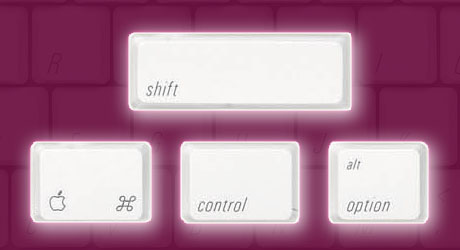
For © : Alt+0169
For ® : Alt+0174
For ™ : Alt+0153
For › : Alt+0155
For † : Alt+0134
For ø : Alt+0248
For ¤ : Alt+0164
For « : Alt+0171
For ° : Alt+0176
For ± : Alt+0177

For ² : Alt+0178
For ³ : Alt+0179
For µ : Alt+0181
For ¶ : Alt+0182
For ¹ : Alt+0185
For » : Alt+0187
For ¼ : Alt+0188
For ½ : Alt+0189
For ¾ : Alt+0190
For Å : Alt+0197
For × : Alt+0215
For Ø : Alt+0216
For Þ : Alt+0222
For ß : Alt+0223
For ☺: Alt+1

DELETE AN UNDELETABLE FILE


Delete An "undeletable" File

Open a Command Prompt window and leave it open.
Close all open programs.
Click Start, Run and enter TASKMGR.EXE
Go to the Processes tab and End Process on Explorer.exe.
Leave Task Manager open.
Go back to the Command Prompt window and change to the directory the AVI (orother undeletable file) is located in.
At the command prompt type DELwhere is the file you wish to delete.
Go back to Task Manager, click File, New Task and enter EXPLORER.EXE to restartthe GUI shell.

Close Task Manager.


Or you can try this

Open Notepad.exe

Click File>Save As..>

locate the folder where ur undeletable file is

Choose 'All files' from the file type box

click once on the file u wanna delete so its name appears in the 'filename' box

put a " at the start and end of the filename
(the filename should have the extension of the undeletable file so it willoverwrite it)

click save,

It should ask u to overwrite the existing file, choose yes and u can delete itas normal


Here's a manual way of doing it. I'll take this off once you put into yourfirst post zain.

1. Start
2. Run
3. Type: command
4. To move into a directory type: cd c:\*** (The stars stand for your folder)
5. If you cannot access the folder because it has spaces for example ProgramFiles or Kazaa Lite folder you have to do the following. instead of typing inthe full folder name only take the first 6 letters then put a ~ and then 1without spaces. Example: cd c:\progra~1\kazaal~1
6. Once your in the folder the non-deletable file it in type in dir - a listwill come up with everything inside.
7. Now to delete the file type in del***.bmp, txt, jpg, avi, etc... And if the file name has spaces you would usethe special 1st 6 letters followed by a ~ and a 1 rule. Example: if your filename was bad file.bmp you would type once in the specific folder thorughcommand, delbadfil~1.bmp and your file should be gone. Make sure to type in the correctextension.


The Medicine when Folder option vanishes.....


Method

1: Here's how you can get Folder Options back..

1: Open Start menu and from there select Run

2: type gpedit.msc and hit enter

3: now in the Group Policy window, from the left pane, select userconfiguration->Administrative Tempelates->windows components->WindowsExplorer by highlighting it with the mouse cursor..

4: now in the right side you will see an option which says "Removes theFolder Options menu item from the Tools menu"

5: right click on this option and select properties

6: now in the properties under Setting tab, select Disabled and hit OK

........................................................................................................................................................................Method 2 run

>>gpedit.msc

>>user configuration

>>administrative templates

>>system

disable "prevent access to registry editing tools"

.......................................................................................................................................................................Method 3 regeditOpen your registry and find the key[HKEY_CURRENT_USER\Software\Microsoft\Windows\CurrentVersion\Policies\Explorer]Createa new DWORD value,

or modify the existing value named "NoFolderOptions" and

set it to equal "1" to hide the options or "0" to show theoptions.

Log-off or restart Windows for the changes to take effect

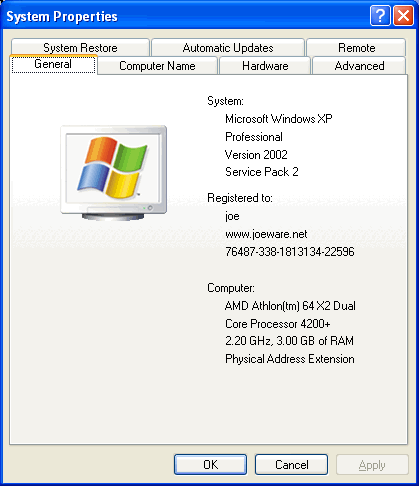
Add a photo to my computer properties..


To do this:
1. Open Notepad.
2. Type the following:[General]Manufacturer="your_nameModel=HP d530SFF(DC578AV)[Support Information]Line1= Your Ph NoLine2= Your Address.....
3. Save as "oeminfo.ini" in the System32 folder.(Without Quote)
4. Create a bmp file(Your Photo) and save it the System32 folder as"oemlogo.bmp"(Without Quote).
5. Now Check your My Computer Properties. 

DISABLE THE SEND ERROR REPORT TO MICROSOFT FEATURE


GETTING FED UP WITH A MESSAGE DISPLAYING (send error reportto microsoft)
solution to this problem is
To disable the stupid feature in WinXP which tries to send a report tomicrosoft every time a program crashes you will have to do this:


Open Control Panel
Click on Preformance and Maintenance.
Click on System.
Then click on the Advanced tab
Click on the error reporting button on the bottom of the windows.
Select Disable error reporting.
Click OK
Click OK

Creating 3D Window Effect


You can create a nice 3D effect for your windows
Start Regedit
Go to HKEY_CURRENT_USER \ Control Panel \ Colors
Make sure the following setting are there:
ButtonHilight=128 128 128ButtonShadow=255 255 255 

LOCK UR DESKTOP ICONS


To lock your desktop icons into place
first arrange it carefully the way you wantit to be
then open up the registry editor.
Go to HKEY_CURRENT_USER\Software\Microsoft\Windows\
CurrentVersion\Policies\Explorer.
Right-click in the right pane and select
New, DWORD Value name NoSaveSettings
and press the Enter key.
Right-click on the new NoSaveSettings itemand select Modify.
Enter 1 in the Value data box.

After this, whenever you restart Windows,your settings will return to their current state.

23 ways to speed up your pc


Since defragging the disk won't do much to improve Windows XP performance, here are 23 suggestions that will. Each can enhance the performance and reliability of your customers' PCs. Best of all, most of them will cost you nothing.

1.) To decrease a system's boot time and increase system performance, use the money you save by not buying defragmentation software -- the built-in Windows defragmenter works just fine -- and instead equip the computer with an Ultra-133 or Serial ATA hard drive with 8-MB cache buffer.

2.) If a PC has less than 512 MB of RAM, add more memory. This is a relatively inexpensive and easy upgrade that can dramatically improve system performance.

3.) Ensure that Windows XP is utilizing the NTFS file system. If you're not sure, here's how to check: First, double-click the My Computer icon, right-click on the C: Drive, then select Properties. Next, examine the File System type; if it says FAT32, then back-up any important data. Next, click Start, click Run, type CMD, and then click OK. At the prompt, type CONVERT C: /FS:NTFS and press the Enter key. This process may take a while; it's important that the computer be uninterrupted and virus-free. The file system used by the bootable drive will be either FAT32 or NTFS. I highly recommend NTFS for its superior security, reliability, and efficiency with larger disk drives.

4.) Disable file indexing. The indexing service extracts information from documents and other files on the hard drive and creates a "searchable keyword index." As you can imagine, this process can be quite taxing on any system.

The idea is that the user can search for a word, phrase, or property inside a document, should they have hundreds or thousands of documents and not know the file name of the document they want. Windows XP's built-in search functionality can still perform these kinds of searches without the Indexing service. It just takes longer. The OS has to open each file at the time of the request to help find what the user is looking for.

Most people never need this feature of search. Those who do are typically in a large corporate environment where thousands of documents are located on at least one server. But if you're a typical system builder, most of your clients are small and medium businesses. And if your clients have no need for this search feature, I recommend disabling it.

Here's how: First, double-click the My Computer icon. Next, right-click on the C: Drive, then select Properties. Uncheck "Allow Indexing Service to index this disk for fast file searching." Next, apply changes to "C: subfolders and files," and click OK. If a warning or error message appears (such as "Access is denied"), click the Ignore All button.

5.) Update the PC's video and motherboard chipset drivers. Also, update and configure the BIOS. For more information on how to configure your BIOS properly, see this article on my site.


6.) Empty the Windows Prefetch folder every three months or so. Windows XP can "prefetch" portions of data and applications that are used frequently. This makes processes appear to load faster when called upon by the user. That's fine. But over time, the prefetch folder may become overloaded with references to files and applications no longer in use. When that happens, Windows XP is wasting time, and slowing system performance, by pre-loading them. Nothing critical is in this folder, and the entire contents are safe to delete.

7.) Once a month, run a disk cleanup. Here's how: Double-click the My Computer icon. Then right-click on the C: drive and select Properties. Click the Disk Cleanup button -- it's just to the right of the Capacity pie graph -- and delete all temporary files.

8.) In your Device Manager, double-click on the IDE ATA/ATAPI Controllers device, and ensure that DMA is enabled for each drive you have connected to the Primary and Secondary controller. Do this by double-clicking on Primary IDE Channel. Then click the Advanced Settings tab. Ensure the Transfer Mode is set to "DMA if available" for both Device 0 and Device 1. Then repeat this process with the Secondary IDE Channel.

9.) Upgrade the cabling. As hard-drive technology improves, the cabling requirements to achieve these performance boosts have become more stringent. Be sure to use 80-wire Ultra-133 cables on all of your IDE devices with the connectors properly assigned to the matching Master/Slave/Motherboard sockets. A single device must be at the end of the cable; connecting a single drive to the middle connector on a ribbon cable will cause signaling problems. With Ultra DMA hard drives, these signaling problems will prevent the drive from performing at its maximum potential. Also, because these cables inherently support "cable select," the location of each drive on the cable is important. For these reasons, the cable is designed so drive positioning is explicitly clear.

10.) Remove all spyware from the computer. Use free programs such as AdAware by Lavasoft or SpyBot Search & Destroy. Once these programs are installed, be sure to check for and download any updates before starting your search. Anything either program finds can be safely removed. Any free software that requires spyware to run will no longer function once the spyware portion has been removed; if your customer really wants the program even though it contains spyware, simply reinstall it. For more information on removing Spyware visit this Web Pro News page.

11.) Remove any unnecessary programs and/or items from Windows Startup routine using the MSCONFIG utility. Here's how: First, click Start, click Run, type MSCONFIG, and click OK. Click the StartUp tab, then uncheck any items you don't want to start when Windows starts. Unsure what some items are? Visit the WinTasks Process Library. It contains known system processes, applications, as well as spyware references and explanations. Or quickly identify them by searching for the filenames using Google or another Web search engine.

12.) Remove any unnecessary or unused programs from the Add/Remove Programs section of the Control Panel.

13.) Turn off any and all unnecessary animations, and disable active desktop. In fact, for optimal performance, turn off all animations. Windows XP offers many different settings in this area. Here's how to do it: First click on the System icon in the Control Panel. Next, click on the Advanced tab. Select the Settings button located under Performance. Feel free to play around with the options offered here, as nothing you can change will alter the reliability of the computer -- only its responsiveness.

14.) If your customer is an advanced user who is comfortable editing their registry, try some of the performance registry tweaks offered at Tweak XP.

15.) Visit Microsoft's Windows update site regularly, and download all updates labeled Critical. Download any optional updates at your discretion.

16.) Update the customer's anti-virus software on a weekly, even daily, basis. Make sure they have only one anti-virus software package installed. Mixing anti-virus software is a sure way to spell disaster for performance and reliability.

17.) Make sure the customer has fewer than 500 type fonts installed on their computer. The more fonts they have, the slower the system will become. While Windows XP handles fonts much more efficiently than did the previous versions of Windows, too many fonts -- that is, anything over 500 -- will noticeably tax the system.

18.) Do not partition the hard drive. Windows XP's NTFS file system runs more efficiently on one large partition. The data is no safer on a separate partition, and a reformat is never necessary to reinstall an operating system. The same excuses people offer for using partitions apply to using a folder instead. For example, instead of putting all your data on the D: drive, put it in a folder called "D drive." You'll achieve the same organizational benefits that a separate partition offers, but without the degradation in system performance. Also, your free space won't be limited by the size of the partition; instead, it will be limited by the size of the entire hard drive. This means you won't need to resize any partitions, ever. That task can be time-consuming and also can result in lost data.

19.) Check the system's RAM to ensure it is operating properly. I recommend using a free program called MemTest86. The download will make a bootable CD or diskette (your choice), which will run 10 extensive tests on the PC's memory automatically after you boot to the disk you created. Allow all tests to run until at least three passes of the 10 tests are completed. If the program encounters any errors, turn off and unplug the computer, remove a stick of memory (assuming you have more than one), and run the test again. Remember, bad memory cannot be repaired, but only replaced.

20.) If the PC has a CD or DVD recorder, check the drive manufacturer's Web site for updated firmware. In some cases you'll be able to upgrade the recorder to a faster speed. Best of all, it's free.

21.) Disable unnecessary services. Windows XP loads a lot of services that your customer most likely does not need. To determine which services you can disable for your client, visit the Black Viper site for Windows XP configurations.

22.) If you're sick of a single Windows Explorer window crashing and then taking the rest of your OS down with it, then follow this tip: open My Computer, click on Tools, then Folder Options. Now click on the View tab. Scroll down to "Launch folder windows in a separate process," and enable this option. You'll have to reboot your machine for this option to take effect.

23.) At least once a year, open the computer's cases and blow out all the dust and debris. While you're in there, check that all the fans are turning properly. Also inspect the motherboard capacitors for bulging or leaks. For more information on this leaking-capacitor phenomena, you can read numerous articles on my site.


Following any of these suggestions should result in noticeable improvements to the performance and reliability of your customers' computers. If you still want to defrag a disk, remember that the main benefit will be to make your data more retrievable in the event of a crashed drive.
Wednesday, July 7, 2010

TRICK TO ADD UR FAVOURITE WEBSITE IN START MENU

this is a simple trick to add ur favourite website link in START MENU
Right click on the Start button and select Explore
After Windows Explorer opens, in the right window pane, right click and selectNew / Shortcut
In the "Type the location of the item" enter the Web Site URL youwant to create. FOR EXAMPLE http://navidosth.blogspot.com/
Click Next
In the "Type a name for this shortcut:" enter a name for the linkthat you want to display in the Start menu. eg : PC TRICKS
Click Finish
Now click on the Start menu and you will see the new link you just created.Click on it and it will open THAT website

Monday, July 5, 2010

Interview Questions ! Flash Games ! Latest Jobs


I came across a site that is a hub of un-limited interview questions on asp.net, testing, php, java, oracle etc.This site also includes Freelance projects, Online air ticket reservation functionality, gaming, latest sports news, discussion forum, directory submission, latest jobs.

Here is the link to that site:


http://www.interviewhelper.org

Make Pendrive Bootable For Linux


insert Pen drive
*

open UNetbootin software
*

* Download


*

[content suppressed] [content suppressed]

( otherwise you can install > unetbootin_304-4_i386.deb

simple with dpkg -i command )


 Select Diskimage :- ISO ( Browse ISO file )
*

Mark on :- Show All Drives ( Use with Care )
*

In Type: Select USB Drive
*

In Drive: Select you PenDrive
*

Then click OK
*

It will be copying files in pendrive &
Install's MBR on it
*

after finish REBOOT or EXIT


Now in BIOS setting select boot from USB device ( make sure USB is Enable)

restart & install OS

Important Note: ! Work's only live cd's ISO file

-------------------------------------------------------------------------------------


Saturday, July 3, 2010

How To Get The Most From Your Ipod

Since the iPod was first introduce over fours ago is has proven to be a versatile little tool. Even though the architecture is tightly closed, hackers have managed to find their way in so that they can make modifications. Software developers and creators of content have made it possible for you to use the iPod to keep all kinds of information at your finger tips. Besides being a unique way to carry around your music wherever you go, the iPod can be used for many other purposes.Most people buy an iPod for the obvious reasons. The iPod works with your computer so that you can import music and organize your songs and photos. These files are then transferred to your iPod so that you can listen to them and view them wherever you go.

How make faster windows7 (windows 7 registry tweak)

How make faster windows7 (windows 7 registry tweak)


1. Simply start the first step to open the Notepad.
2. Copy and paste the following script into the notepad.
3. Save as the file name in . reg extension , for example: free7.reg
4. Then double click the free7.reg file . And when the confirmation box appears "Are you sure you want add the information in......to the registry?" select "Yes"

Then restart your computer, you are guaranteed that your windows7 OS will be faster


Related: Make very fast windows xp

Copy-paste the script below into Notepad:
==========================================

# Windows Registry Editor Version 5.00

[HKEY_CURRENT_USER\Software\Microsoft\Windows\Curre ntVersion\Policies\Explorer]
"NoLowDiskSpaceChecks"=dword:00000001
"LinkResolveIgnoreLinkInfo"=dword:00000001
"NoResolveSearch"=dword:00000001
"NoResolveTrack"=dword:00000001
"NoInternetOpenWith"=dword:00000001

[HKEY_CLASSES_ROOT\AllFilesystemObjects\shellex\Con textMenuHandlers\Copy To]
@="{C2FBB630-2971-11D1-A18C-00C04FD75D13}"

[HKEY_CLASSES_ROOT\AllFilesystemObjects\shellex\Con textMenuHandlers\Move To]
@="{C2FBB631-2971-11D1-A18C-00C04FD75D13}"

[HKEY_CURRENT_USER\Control Panel\Desktop]
"AutoEndTasks"="1"
"HungAppTimeout"="1000"
"MenuShowDelay"="8"
"WaitToKillAppTimeout"="2000"
"LowLevelHooksTimeout"="1000"

[HKEY_LOCAL_MACHINE\SYSTEM\CurrentControlSet\Contro l]
"WaitToKillServiceTimeout"="1000"

[-HKEY_LOCAL_MACHINE\SOFTWARE\Microsoft\Windows\Curr entVersion\Explorer\RemoteComputer]

[HKEY_CLASSES_ROOT\*\shell\runas]
@="Take Ownership"
"NoWorkingDirectory"=""

[HKEY_CLASSES_ROOT\*\shell\runas\command]
@="cmd.exe /c takeown /f \"%1\" && icacls \"%1\" /grant administrators:F"
"IsolatedCommand"="cmd.exe /c takeown /f \"%1\" && icacls \"%1\" /grant administrators:F"

[HKEY_CLASSES_ROOT\Directory\shell\runas]
@="Take Ownership"
"NoWorkingDirectory"=""

[HKEY_CLASSES_ROOT\Directory\shell\runas\command]
@="cmd.exe /c takeown /f \"%1\" /r /d y && icacls \"%1\" /grant administrators:F /t"
"IsolatedCommand"="cmd.exe /c takeown /f \"%1\" /r /d y && icacls \"%1\" /grant administrators:F /t"
=====================================

Friday, July 2, 2010

Recover the lost administrators password


Slightly more work needed ifyou lose or forget the Windows XP administrator password.

1.First reboot Windows XP in safe mode by re-starting the computer and pressingF8 repeated as the computer starts up.

2.Then (in safe mode) click Start and then click Run. In the open box type"control userpasswords2" without the quotes - I have just used quotesto differentiate what you have to type.

3.You will now have access to all the user accounts, including theadministrators account and will be able to reset the lost password.

4.Just click the administrators user account, and then click Reset Password.

5.You will need to add a new password in the New password and the Confirm newpassword boxes, and confirm by clicking OK.


All done, you have recovered the lost admistrator's password!

Creating 3D Window Effect

You can create a nice 3Deffect for your windows
Start Regedit
Go to HKEY_CURRENT_USER \ Control Panel \ Colors
Make sure the following setting are there:
ButtonHilight=128 128 128ButtonShadow=255 255 255 

INCREASE UR SYSTEM PERFORMANCE


If you have 512 megs or more of memory,
u can increase system performance
by having the core system kept in memory

steps are

Start Regedit
Go to HKEY_LOCAL_MACHINE\SYSTEM\CurrentControlSet\Control\SessionManager\Memory Management\DisablePagingExecutive
Set the value to be 1
Reboot the computer

Thursday, July 1, 2010

maintain your computer


You may not realize it, but your computer and your car have something in common: they both need regular maintenance. No, you don't need to change your computer's oil. But you should be updating your software, keeping your antivirus subscription up to date, and checking for spyware. Read on to learn what you can do to help improve your computer's security.


Getting started

Here are some basics maintenance tasks you can do today to start improving your computer's security. Be sure you make these part of your ongoing maintenance as well.

* Sign up for software update e-mail notices. Many software companies will send you e-mail whenever a software update is available. This is particularly important for your operating system (e.g., Microsoft VV!|VD0VV$® or Macintosh), your antivirus program, and your firewall.
* Register your software. If you still have registration forms for existing software, send them in. And be sure to register new software in the future. This is another way for the software manufacturer to alert you when new updates are available.
* Install software updates immediately.
When you get an update notice, download


the update immediately and install it. (Remember, downloading and installing are two separate tasks.)
An ounce of prevention

A few simple steps will help you keep your files safe and clean.

* Step 1: Update your software
* Step 2: Backup your files
* Step 3: Use antivirus software and keep it updated
* Step 4: Change your passwords


Developing ongoing maintenance practices

Now that you've done some ground work, it's time to start moving into longer term maintenance tasks. These are all tasks that you should do today (or as soon as possible) to get started. But for best results, make these a part of a regular maintenance schedule. We recommend setting aside time each week to help keep your computer secure.

* Back up your files. Backing up your files simply means creating a copy of your computer files that you can use in the event the originals are lost. (Accidents can happen.) To learn more read our tips for backing up information.


* Scan your files with up to date antivirus software. Use your antivirus scan tool regularly to search for potential computer viruses and worms. Also, check your antivirus program's user manual to see if you can schedule an automatic scan of your computer. To learn more, read our tips for reducing your virus risk
.
* Change your passwords. Using the same password increases the odds that someone else will discover it. Change all of your passwords regularly (we recommend monthly) to reduce your risk. Also, choose your passwords carefully. To learn more, read our tips for creating stronger passwords
.

Making a schedule

One of the best ways to help protect your computer is to perform maintenance regularly. To help you keep track, we suggest making a regular "appointment" with your computer. Treat it like you would any other appointment. Record it in your datebook or online calendar, and if you cannot make it, reschedule. Remember, you are not only helping to improve your computer, you are also helping to protect your personal information.

Wednesday, June 30, 2010

hide your folders


first create a new folder somewhere on your hard drive
when you name it hold down "Alt" and press "0160" this will create and invisible space so it will apper as if it has no name.
then right click in and select "Properties" select the tab "coustimize" and select "change icon" scroll along and you should a few blanc spaces click on any one and click ok when you hav saved the settings the folder will be invisible to hide all your personal files

Crack BIOS Password!!


Forgot BIOS Password ?

Do the following :

1. Open the CPU
2. Now, observe the motherboard.
3. You notice a coin like silver Battery(3V).


----------------------------------------- NOTE --------------------------------------------------------
This battery is 24 x 7 power supply for the BIOS, which is used to run the system clock will the main power is off. It also initiates the booting process when power is switched on.
-----------------------------------------------------------------------------------------------------------

4. Remove the battery from the motherboard.
(It is safe to remove the Battery)
5. Wait 30 seconds and place the battery back on the motherboard.
6. Now, when you start your system you won't be prompted for the BIOS password.

Enjoy !!!

INCREASE UR BROWSING SPEED


Speed up your firefox browser and load pages about 20% faster than previous.

1. Type "about:config" into the address bar and hit return. Scroll down and look for the following entries:

network.http.pipeliningnetwork.http.proxy.pipeliningnetwork.http.pipelining.maxrequests

Normally the browser will make one request to a web page at a time. When you enable pipelining it will make several at once, which really speeds up page loading.

2. Alter the entries as follows:

Set "network.http.pipelining" to "true"

Set "network.http.proxy.pipelining" to "true"

Set "network.http.pipelining.maxrequests" to some number like 30. This means it will make 30 requests at once.

3. Lastly right-click anywhere and select New-> Integer. Name it "nglayout.initialpaint.delay" and set its value to "0". This value is the amount of time the browser waits before it acts on information it recieves.

If you're using a broadband connection you'll load pages 2-3 times faster now.

mozila net increase speed